Real S1 screenshots help you recognize the right screen and find the next step. Start with a working upstream internet connection.
Current S1 interfaceUpdated September 16, 2026
1Connect your S1
DHCP only: S1 must automatically receive its WAN address from your existing router or gateway. Direct ADSL/PPPoE, PPTP or other connections requiring dial-up authentication are not currently supported.
If your internet service needs a username and password, let your modem/router complete that connection first. Enable DHCP on its LAN, then connect it to S1. S1 does not replace an ISP-required modem or ONT.
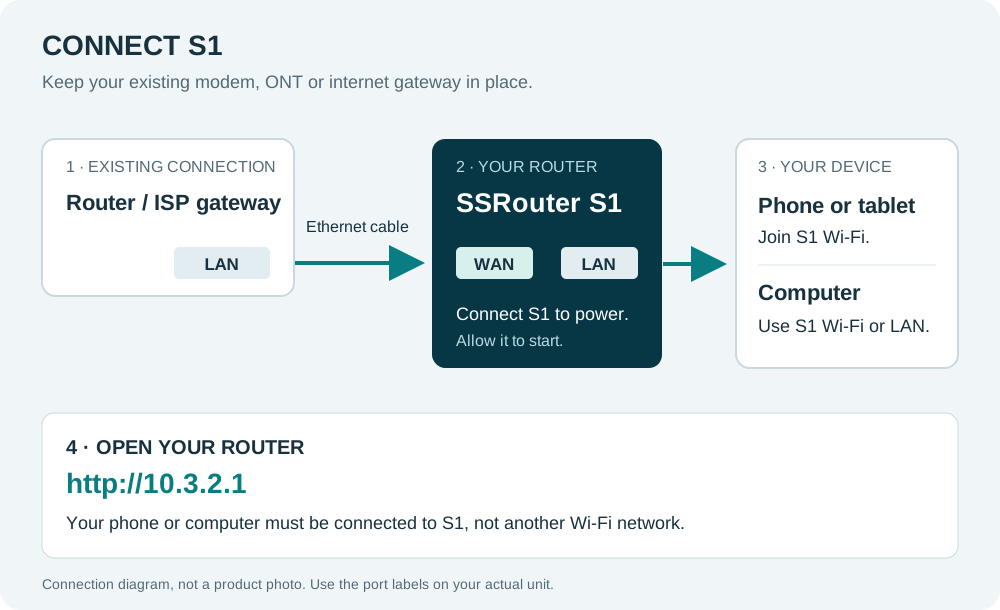
Connection diagram, not a product photo. Follow the port labels on your devices. Select an image to open it full size.
Check that your main router already has working internet.
Connect main router LAN → S1 WAN.
Connect S1 to power and allow it to start.
Join S1 Wi-Fi, or connect your computer to an S1 LAN port.
Open any web browser. Type http://10.3.2.1/ into the address bar, not a search box.
Power connected before the WAN cable? Connect the cable, allow networking to initialize, then check the panel. Wi-Fi connection alone does not confirm internet access or online activation.
2Check which screen appears
While connected to S1, enter http://10.3.2.1/. This is a local address, not a public website.
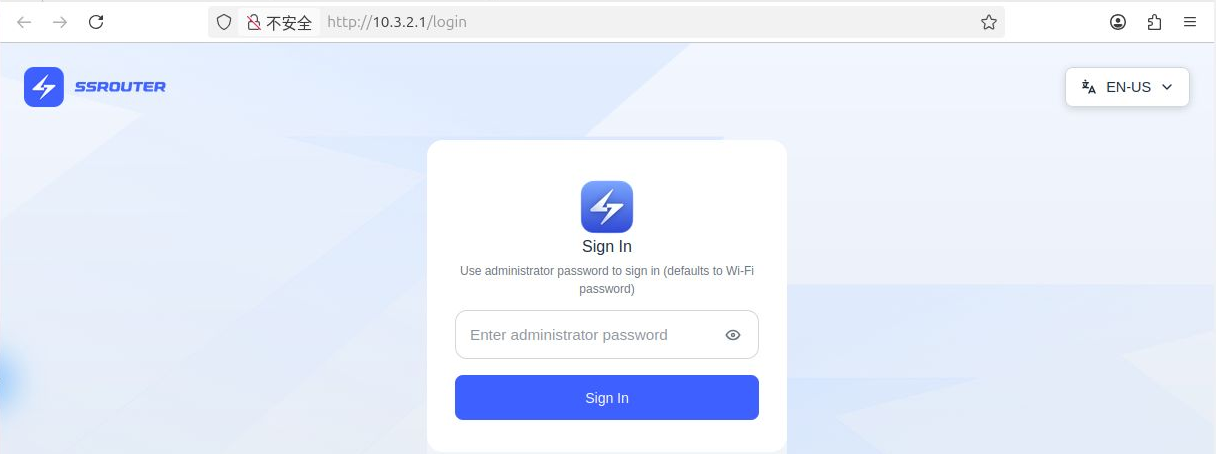
A. Expected: the S1 Sign In screen
Actual S1 sign-in screen. The browser may add /login automatically. Browser labels may use your computer's language even when the page is English.
Look for the SSRouter logo, one administrator-password field and blue Sign In button.
Enter your S1 administrator password. Unless changed, it defaults to the S1 Wi-Fi password, as stated on the screen—not your main-router or ISP password.
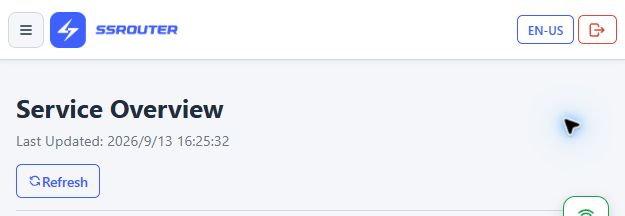
Select Sign In. You should reach Service Overview.
Check your plan and actual internet access using the readiness checklist below.
A “Not secure” label beside this local HTTP address is not, by itself, an activation error. Confirm that you are connected to your S1 and using the correct local address before signing in.
B. Different screen: activation may not be complete
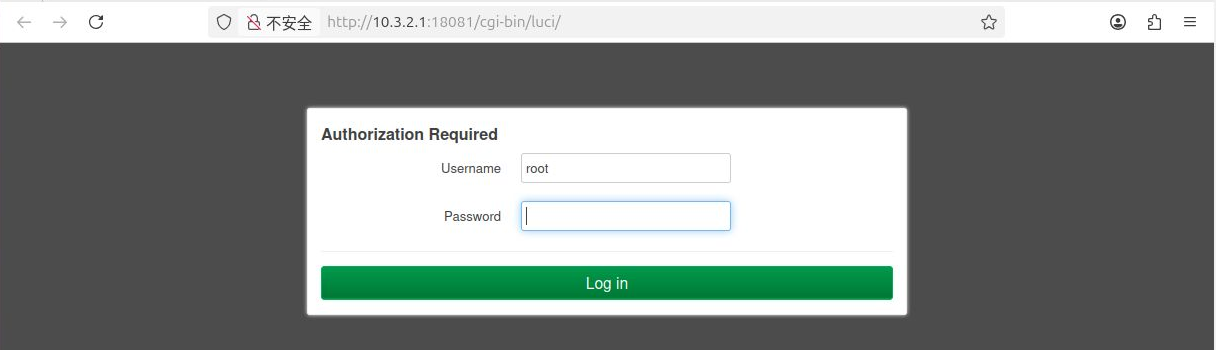
If the same address shows Authorization Required, a Username / root field and a password field like the image below, online activation may not have completed successfully.
Real interface reference, displayed temporarily on a sample without interrupting its normal service—not a recorded activation failure. The capture-only port :18081 is not for customer setup. Always enter http://10.3.2.1/ without a port number.
Do not sign in to or change settings on this unexpected page. Check WAN, upstream internet and DHCP using the steps below. This screen alone does not prove a hardware fault or identify one specific cause.
If no page opens
Confirm that your client is connected to S1, not another Wi-Fi network. In the default setup, its gateway should be 10.3.2.1 and its address should be compatible with 10.3.2.x. Check cables and record the exact browser error. An unreachable page alone does not prove an activation failure.
Check the connection before trying again
The device may have had no internet at startup, received no DHCP address, or been unable to reach the activation service. Support may need to check activation status even when ordinary internet access works.
Confirm a phone or computer connected directly to your main router can open websites.
Check main router LAN → S1 WAN. Reseat both ends; try another cable or main-router LAN port.
Make sure the upstream DHCP server is enabled.
Complete any ADSL/PPPoE, PPTP or other dial-up login on the upstream modem/router, not S1.
Keep S1 powered on with WAN connected. Allow time for initialization, then reopen http://10.3.2.1/.
If the unexpected screen remains after upstream internet is confirmed working, restart S1 once by disconnecting and reconnecting power, with WAN connected. Do not interrupt an update. Reconnect to S1 Wi-Fi/LAN and check again. Do not press or hold Reset.
If it still appears, send support a screenshot including the address bar, your country, whether upstream internet works and your device MAC address privately. Do not keep resetting or change settings on the unexpected page.
After recovery: look for the SSRouter logo, single password field and blue Sign In button; then verify your plan and real browsing.
3Confirm service readiness
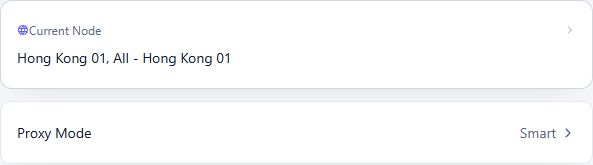
Expected dashboard after signing in.
The S1 control panel opens and you can sign in.
Your plan has remaining time and data.
A managed node and the intended routing mode are selected.
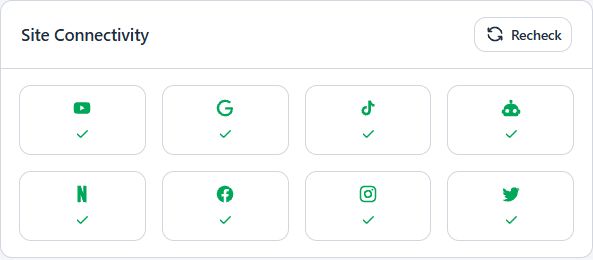
Websites actually load on your connected phone or computer.
A highlighted mode or Connected label is not a substitute for the browsing check. Screenshots show a sample state, not promised node availability or a retail plan allowance.
Check the selected node and mode.Indicators are point-in-time checks. Also test browsing from your own client.
4Choose a managed node
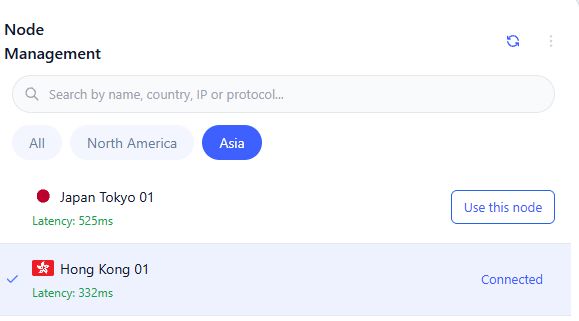
Open Proxy Management, then its managed-node list.
Use the region filters or search field to find a node.
Select Use this node and wait for completion. Avoid repeated clicks during a change.
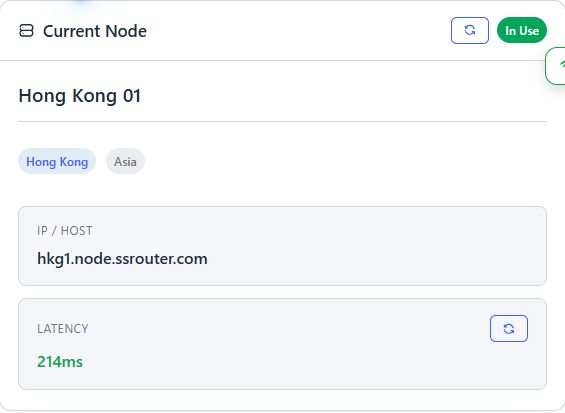
Check Current Node, the intended mode and actual browsing.
Actual managed-node controls. The red circle next to Japan is its flag, not a failure indicator.IP / Host is a displayed node address. Managed-node users do not need to edit it.
Red indicators or failed connections
A latency value is not download speed or a complete proxy login test. Red can mean high latency; a missing result or failure message needs separate checks. Do not judge availability by color alone.
If a node fails, check ordinary upstream internet and your plan first, then compare another managed node. Tell support the node, mode and test time. Do not share passwords or full connection links.
Managed nodes do not require importing custom credentials. See the Custom Nodes compatibility note before using that separate feature.
5Direct, Global & Smart
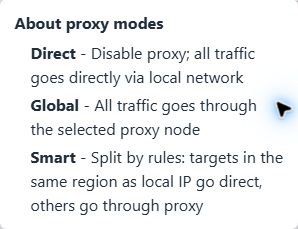
Use the question-mark Help control beside Proxy Mode.
Mode
Intended behavior
Direct
Use the ordinary internet connection without the proxy.
Global
Send supported traffic through the selected proxy node.
Smart
Send destinations matched by local-country rules directly and other supported traffic through the selected node.
Smart uses the country associated with the router's internet connection and available rules. A website's language or name does not establish its server location. A CDN or separate IP-detection service may be elsewhere.
These modes do not guarantee every app or protocol. IPv6 proxy routing is not verified for this firmware. Proxy routing does not change GPS location.
Smart shows an unexpected country
Your phone, computer or browser can use a separate DNS service even when Wi-Fi DNS says Automatic. That service may return destination addresses in another region.
Keep the same S1 network, node and Smart mode while checking one issue.
Record the affected website/app, expected result, time and time zone.
Check Wi-Fi DNS and any separate VPN, encrypted-DNS app, system DNS profile or browser secure-DNS setting. On some iPhones, profiles appear under Settings → General → VPN & Device Management.
On your own device, record the existing setting, then temporarily compare using S1-provided automatic DNS without a separate VPN/DNS override. Reopen the browser and retest.
If the issue remains, send support the recorded details and whether an independent DNS or VPN is active.
Do not delete employer-managed DNS or device-management profiles. Ask the administrator. Do not send profile files or credentials.
A single IP-checking website does not validate all Smart rules. Switching nodes repeatedly is not a substitute for checking a separate client DNS service.
6Use Diagnostics
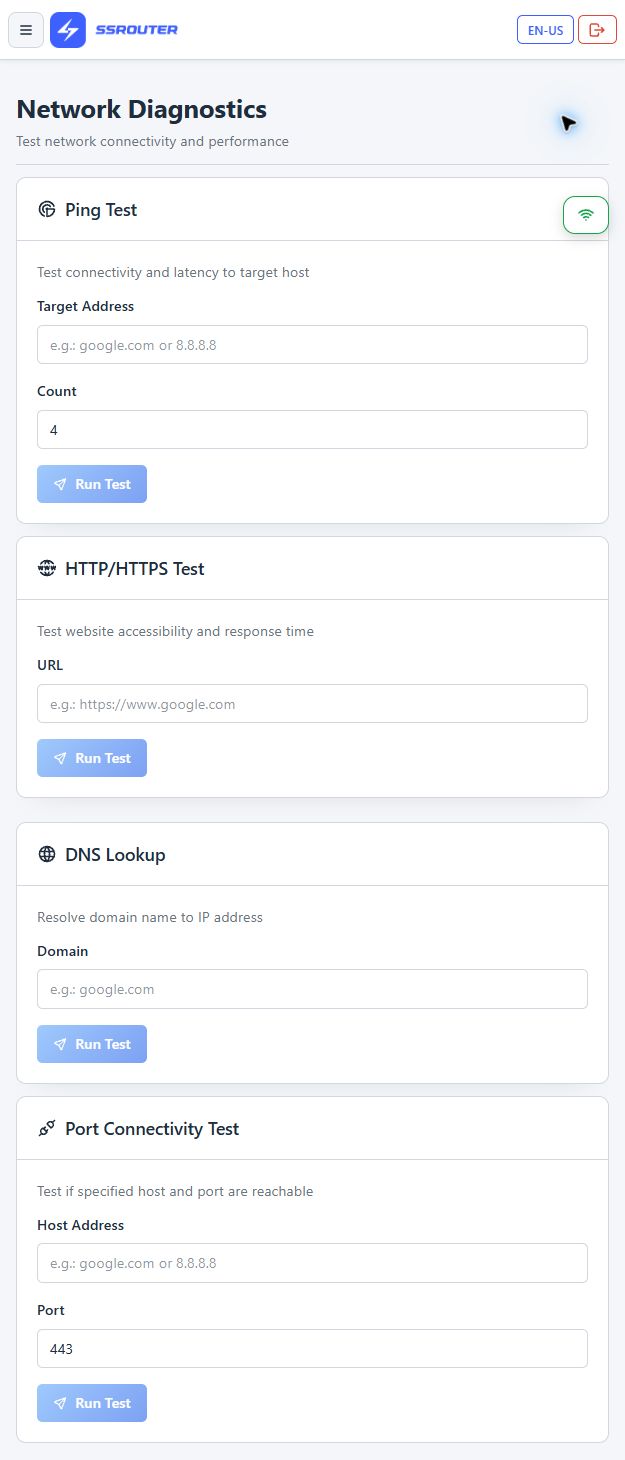
Open Diagnostics. Enter the relevant public website or host and use Ping Test, HTTP/HTTPS Test, DNS Lookup or Port Connectivity Test.
Show the actual Diagnostics screenActual tools, without fabricated test results. Select the image for full size.
A failed ping alone does not prove the internet is down. DNS lookup checks name resolution; a successful port test does not validate a complete proxy session. Compare router diagnostics with actual browsing on the affected client.
Never enter passwords, full node links, activation codes or payment tokens into diagnostic fields.
Plans & payments
Check your device's displayed plan, expiry and remaining allowance. Review the actual checkout's plan, duration, currency and total before paying. Another customer's trial or a screenshot is not a promise about your plan.
Paid but the plan has not updated? Keep the order reference and contact support. Do not pay again just to refresh the display.
Renewal and change eligibility are shown by checkout. This guide does not add automatic-renewal, refund, trial or unlimited-usage promises.
Frequently asked questions
Which address do I enter?
Connect to S1 Wi-Fi or LAN, then type http://10.3.2.1/ in your browser's address bar. Do not search for it. The S1 sign-in page may add /login automatically. Do not enter the temporary port shown in the alternate-screen reference.
I see Authorization Required or a root username. What should I do?
Online activation may not have completed. This alone does not prove a hardware fault. Do not change settings there. Check WAN, upstream internet and DHCP; if needed, restart once after confirming upstream internet. Contact support if it remains.
How do I know activation and setup worked?
You can sign in to the SSRouter dashboard, your plan has remaining time and data, the intended node and mode are selected, and websites load from a connected device. Seeing only the login page or a Connected label is not enough. See the readiness checklist.
Can I plug in power before the internet cable?
Yes. After connecting main-router LAN to S1 WAN, allow networking to initialize, then check the panel and browsing. If the unexpected sign-in page remains, follow the single-restart and connection checks, not repeated resets.
Can I use an ADSL/PPPoE or PPTP connection directly?
Not currently. S1 requires DHCP on its WAN connection. Let your upstream modem/router complete the ISP login and provide DHCP, then connect its LAN port to S1 WAN.
Which password is used on the S1 Sign In screen?
Use the S1 administrator password. Unless changed, it defaults to the S1 Wi-Fi password. It is not your upstream-router, ISP dial-up or customer-portal password. Do not send passwords to support.
Why does a local website show the node's country in Smart?
The destination or its IP-detection service may use an address outside the country rules. A separate DNS profile or VPN can also affect the result. Follow the DNS checks without repeatedly changing nodes.
Why can a green or Connected node still fail to browse?
Indicators test only part of the connection. DNS, plan status, authentication or a destination-specific issue can still affect browsing. Check the exact failing step and compare ordinary internet with one managed node.
Is Japan's red circle a failed-node warning?
No. The red circle beside the Japan location is its national flag. Check the actual latency/test result and browsing instead.
Does Global change GPS or guarantee access to an app?
No. It changes the route of supported traffic, not GPS. A service can use account region and other signals; access to any specific service is not guaranteed.
Does the traffic counter include every local transfer?
The counter reflects accepted service proxy-usage records, not every local-network transfer or a live speed measurement. Reporting and display updates may take time.
Why is Wi-Fi speed different from proxy speed?
Your ISP, client, cable, interference, distance, selected node and destination all affect performance. Compare the same device and connection. A Wi-Fi speed class is not a guaranteed proxy speed.
Do I need a custom node?
No. Use the supplied managed-node list for normal S1 use. Read the compatibility note before using Custom Nodes.
Should I reset or install new firmware?
Not as a first step. Record the symptoms and contact support. A reset can remove settings; do not install an unverified firmware image or interrupt an update.
Does this firmware provide verified IPv6 proxy routing?
No complete IPv6 proxy-routing guarantee is provided. A node having an IPv6 address does not mean your clients' IPv6 traffic is proxied.
Get useful help with one message
Use the contacts listed in About, or the seller-contact option on your Amazon order. Share device details privately.
Model: SSRouter S1, and your device MAC address when requested.
Your country, test time, time zone and upstream internet status.
Whether you connect by S1 Wi-Fi or LAN.
A redacted screenshot including the browser address bar; say whether the expected S1 screen or a different screen appears.
The selected node and mode, affected website/app, and any separate DNS or VPN setting.
Never send passwords, private keys, full node links, activation codes or payment-card details. A MAC address identifies a device; remote inspection still requires your authorization for its scope.
Find the built-in tutorial links
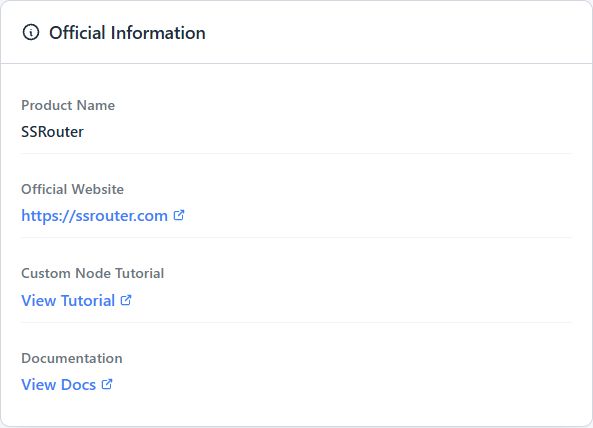
Open About → Official Information → Documentation → View Docs. Custom Node Tutorial → View Tutorial opens the separate compatibility guide. Existing router links continue to work.